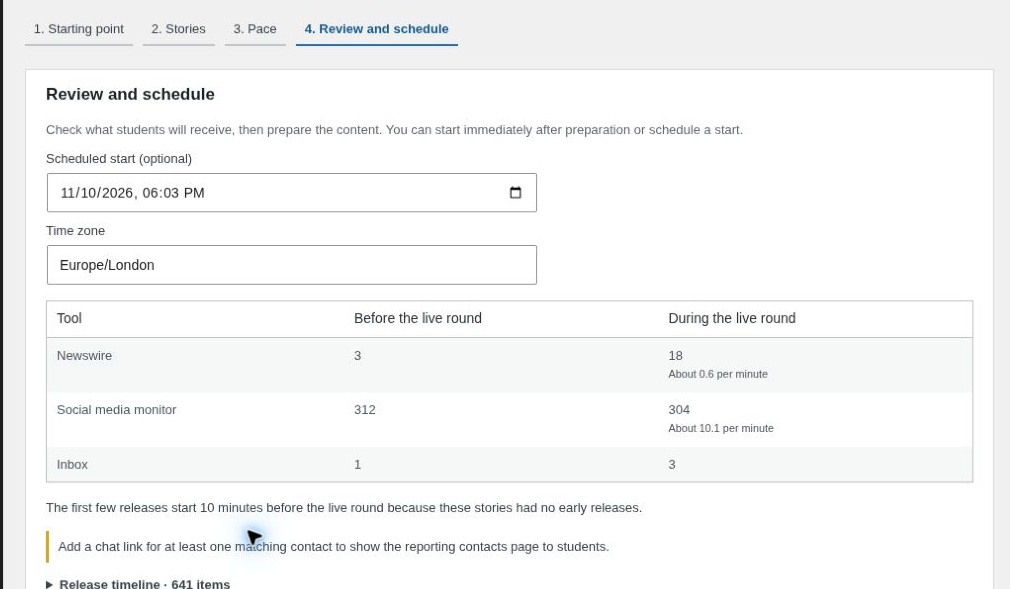
Rehearse and schedule
Open the fourth wizard step, Review and schedule, to see what your class will receive and when.
Check the release timeline
Read the counts under Before the live round and During the live round. Open Release timeline for the individual headlines and their release times. A time shown with a minus sign is before the live round begins.
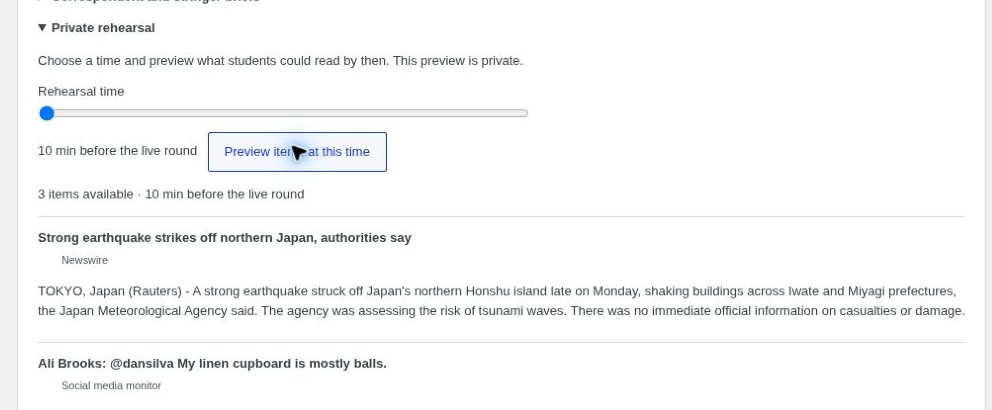
Preview what students can read
- Open Private rehearsal.
- Move the slider to a point before or during the round.
- Select Preview items at this time. Check the total and the latest items shown.
Use this to check that students have enough material at the start, that key updates appear in the right order and that the pace suits the lesson.
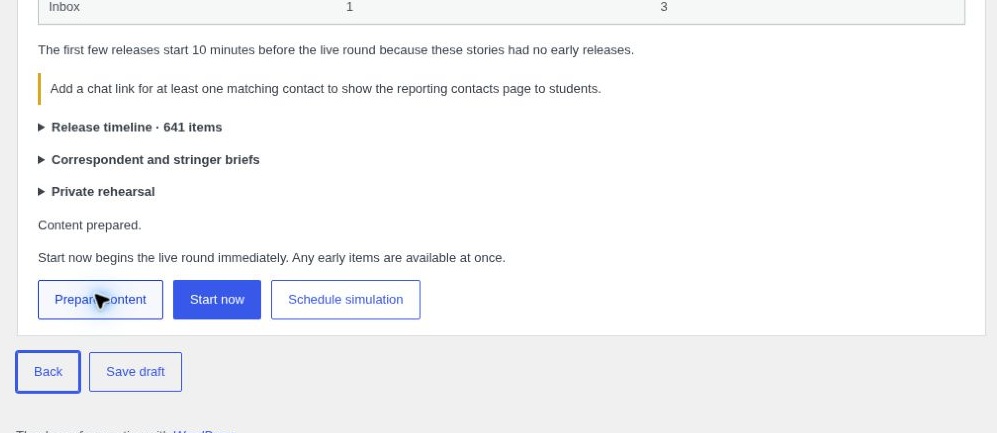
Prepare the content
Select Prepare content and wait for Content prepared. Preparing a run stages the selected material. The student newsroom switches to that material when you schedule or start the run. If preparation is interrupted, return to the wizard and select Resume preparation if it is offered.
Schedule the exercise or start now
For a planned session, enter the local date and time in Scheduled start and choose the time zone, for example Europe/London. Check that the opening time is still in the future. Select Schedule simulation. With chat links for correspondents or stringers, use a scheduled start so their briefs can use fixed release times.
When the class is ready to begin straight away, select Start now. The live round starts immediately and early items are available at once.
Check the Runs panel or Current exercise on the dashboard to confirm the opening, start and end times.