
Build an exercise
Use the first three wizard steps to decide what students will receive. You can save a draft while you work.
1. Choose a starting point
- From the dashboard, choose Open simulation wizard.
- Choose 30 minutes, 60 minutes, 75 minutes or Build your own. A preset gives you a starting selection that you can edit.
- Give the exercise a recognisable name. Under Sources students can use, select the feeds your lesson needs.
- Click Continue. For a first class, try the 30-minute preset with Newswire selected.
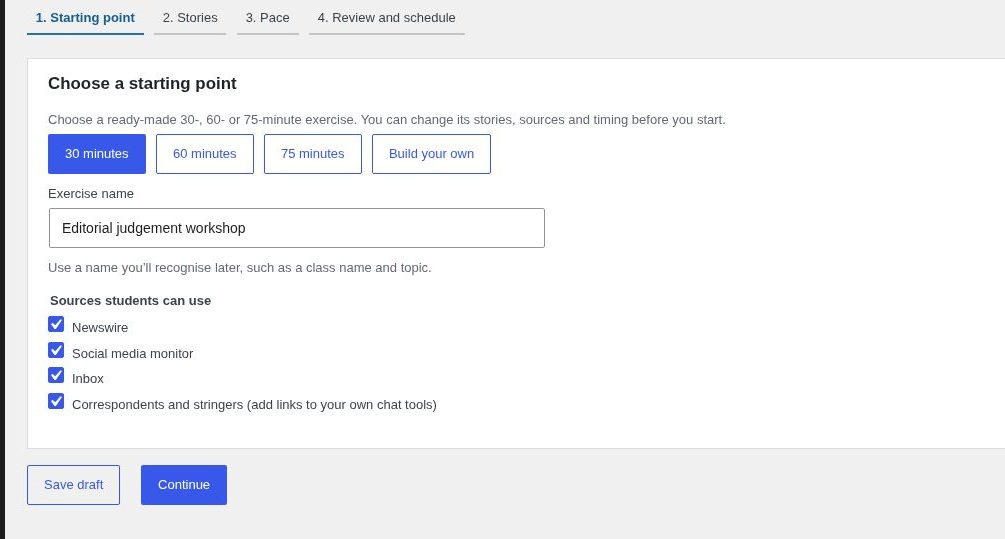
- Newswire
- Dispatches and follow-ups from simulated news agencies.
- Social media monitor
- Posts from simulated accounts, including reactions and unrelated background chatter.
- Inbox
- Simulated messages such as press releases and statements.
- Correspondents and stringers
- Optional contacts linked to chat tools you provide. See Set up reporting contacts.
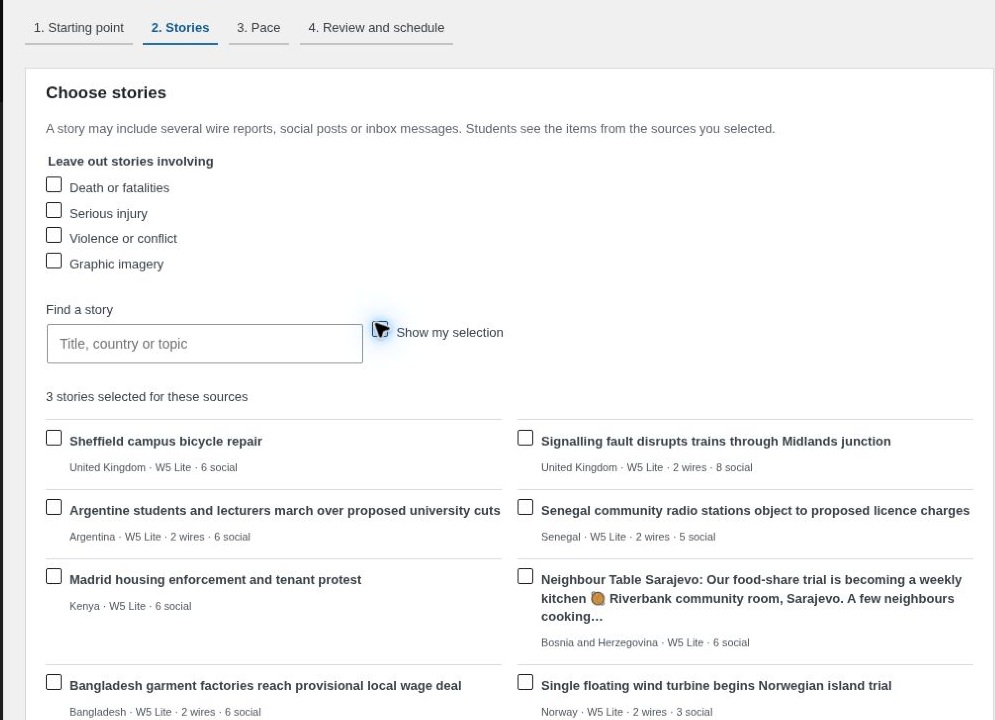
2. Choose stories
Each story can have several related reports, posts and messages. Use Find a story to search by title, country or topic. Tick the stories you want, then turn on Show my selection to review them together. Item counts under each title tell you how much material is available across sources.
Use Leave out stories involving to filter sensitive topics. If two stories are alternative versions of the same scenario, choose one. If a story requires a source you disabled, return to the first step to enable that source or choose another story.
3. Set the pace
- Live round. Set the number of minutes for the exercise itself.
- Opening window. Choose how many minutes early material can appear. With a 10:00 start and 10 minutes early, sources can open at 09:50. Enter 0 to start all releases with the round.
- Newswire volume. Keep all reports or set a target per minute. Some follow-ups are needed for stories to make sense, so check the final count at review.
- Social media volume. Choose a preset or set a custom target. The wizard adjusts unrelated chatter while keeping posts tied to the selected stories.
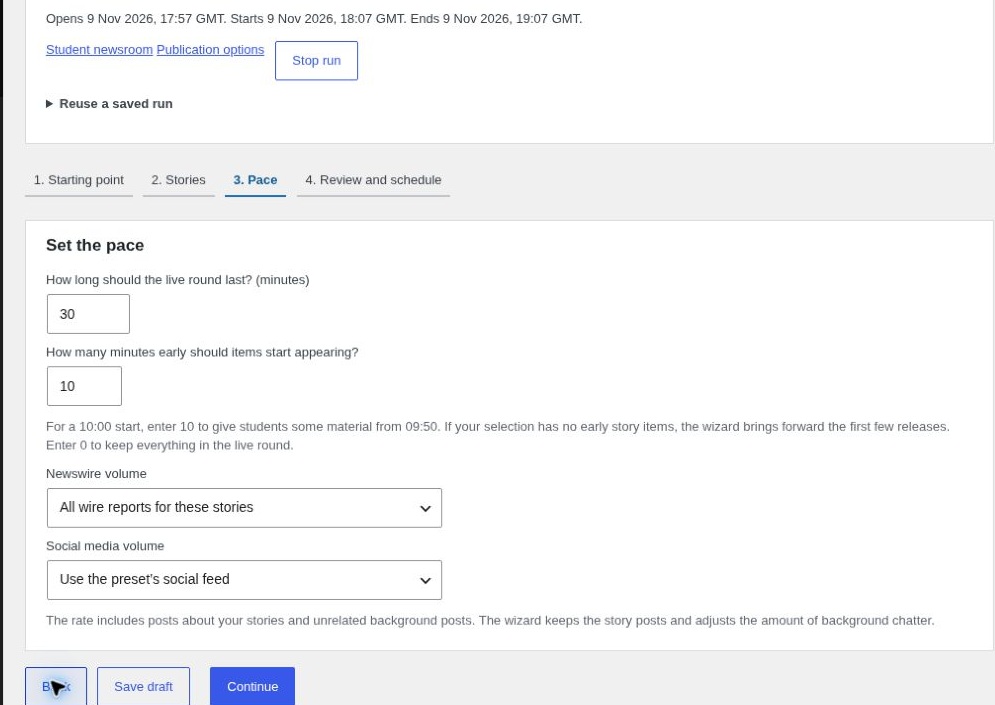
Use Save draft if you are coming back later. When the selection and pace are ready, click Continue to review the release timeline.